MATLAB
Introduction to MATLAB Programming
Accessing MATLAB
MATLAB can be assessed through various modes.
Accessing MATLAB online
- MATLAB can be accessed online, free of charge through “mathworks” website.
- Go to MathWorks Create Profile and create an account following the instructions.
NOTE: Remember your Email and Password information for later use.
- For How will you use MathWorks software?, select “Academic use”.

- Go to MATLAB Online
- Click on open MATLAB online and access the free version of MATLAB online.
Installing Licensed version of MATLAB
- Create a “mathworks” account.
-
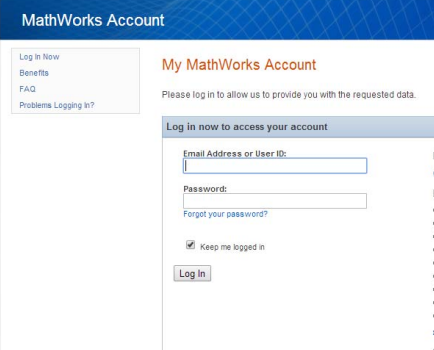
Login to your MathWorks account here: MathWorks Login
-
Associate mathworks license on: License Center
Click on add license, when prompted add license and activation key.
Verify association in License Center. License Label should say ‘2XXX- BEST Robotics’ (2XXX = Current Year).
-
Download the Software.
Go to MathWorks Downloads
Click on the Download link.
Click the blue button that says R2XXXx.
Click the blue button that says R2XXXx Installer.
Open the installer file (*.exe) to extract and launch the installer. -
Install the software.
When MathWorks Installer is launched, select Log in with a MathWorks Account and continue.
At the License Agreement, select Yes and continue.
When prompted to Log In, use your MathWorks Account info.
At License Selection dialog, choose Select a license: and choose the one with the Label: 2XXX – BEST Robotics and continue.
At the Installation Complete prompt, ensure to check Activate MATLAB (default is checked) and continue.
At the Confirmation dialog, click Confirm.
Activation has been completed. Click Finish.
Installing free MATLAB using University email address
- Go to official website of University of Delhi 🡪 Libraries 🡪 e-Resources 🡪 scroll down 🡪 IT service 🡪 “Get Software” 🡪 MATLAB 🡪 Create an account using university email address and install licensed version of MATLAB.
- Alternately, go to University of Delhi MATLAB Portal and create an account using email Id provided by the university and install MATLAB.
Basics: Variables and Operators
Defining Variables
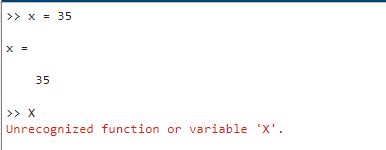
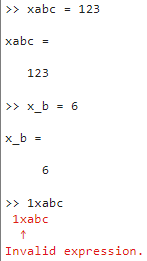
- MATLAB variables are case sensitive which means “x” and “X” can be used as different variables and store different values.
- Variables names can have up to 63 characters (MATLAB 6.5 or newer).
- Variable names can start with a letter and can be followed by digits or underscores.
Special Variables
- Inf = infinity
- NaN = Not a number
- eps = smallest possible incremental Value
- pi
- i and j = root of -1
- realmin = smallest usable positive real number
- realmax = largest usable positive real number
Operators in MATLAB
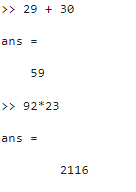
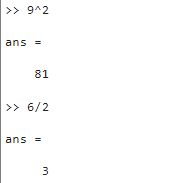
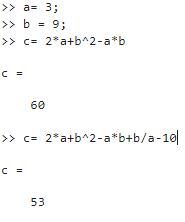
Arithmetic operators
| # | Operation | Symbol | Example |
|---|---|---|---|
| 1 | Add | + | a+b |
| 2 | Subtract | - | a-b |
| 3 | Multiply | * | a*b |
| 4 | Divide | / | a/b |
| 5 | Exponent | ^ | a^b |
Relational operators
| # | Operation | Symbol |
|---|---|---|
| 1 | Greater than | > |
| 2 | Less than | < |
| 3 | Greater than or equal to | >= |
| 4 | Less than or equal to | <= |
| 5 | Equal to | == |
| 6 | Not Equal to | ~= |
Logical operators
| # | Symbol | Meaning |
|---|---|---|
| 1 | ~ | NOT |
| 2 | & | AND |
| 3 | OR | OR |
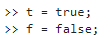
Note: The semicolon “;” after the statements suppresses the output.

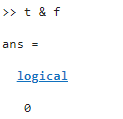
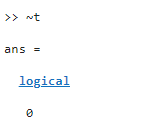
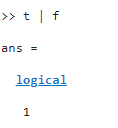
Note: “NOT” operator has the highest precedence and “AND” and “OR” lie on the same precedence level.
Elementary Mathematical functions
abs– finds absolute value of all elements in the matrix.sign– signum function.sin,cos– Trigonometric functions.asin,acos… – Inverse trigonometric functions.exp– Exponential.log,log10– natural logarithm, logarithm (base 10).ceil,floor– round towards +infinity, -infinity respectively.round– round towards nearest integer.real,imag– real and imaginary part of a complex matrix.sort– sort elements in ascending order.
Matrices
A matrix can be created as follows (carefully observe the position of comas and semicolons).
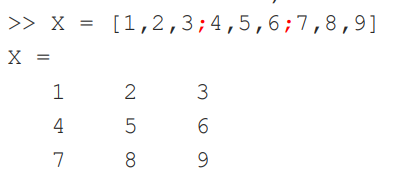
- In MATLAB indexing starts from 1.
- Each element can be accessed from the matrix using the indices of its row and column in the same order.
- For example: “2” can be accessed as X(1,2)

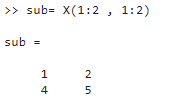
Extracting a portion:
Submatrix = Matrix(r1:r2 , c1:c2)
Manipulating Matrices
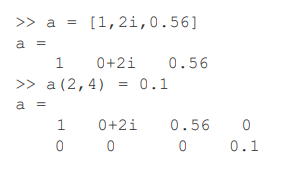
Concatenation
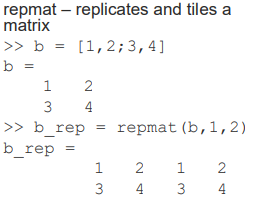
Repetition
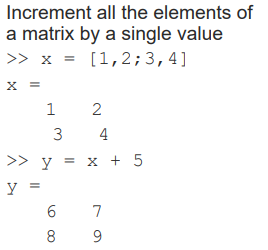
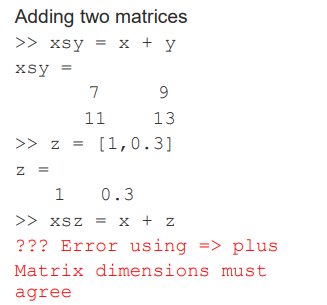
Addition
Multiplication
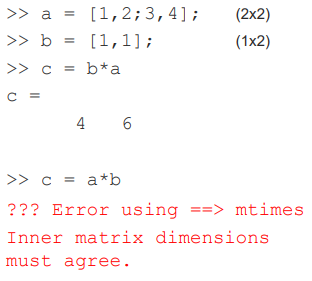
- Matrix multiplication
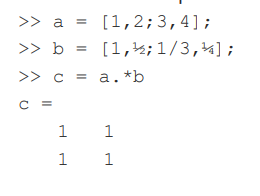
- Element wise multiplication
MATLAB Matrix Functions
zeros: creates an array of all zeros. Ex:x = zeros(3,2)ones: creates an array of all ones. Ex:x = ones(2)eye: creates an identity matrix. Ex:x = eye(3)rand: generates uniformly distributed random numbers in [0,1]diag: Diagonal matrices and diagonal of a matrix.size: returns array dimensions.length: returns length of a vector.det: Matrix determinant.inv: matrix inverse.eig: evaluates eigenvalues and eigenvectors.rank: rank of a matrix.find: searches for the given values in an array/matrix.
2D Plotting
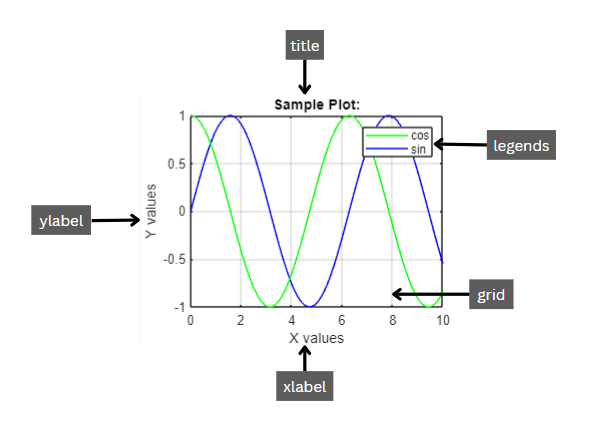
Functions for plotting graphs
| # | Function | Description |
|---|---|---|
| 1 | plot(x,y) |
Plot a continuous graph between x and y. |
| 2 | stem(x,y) |
Plotting a discrete graph between x and y. |
| 3 | Legends("t1","t2") |
Used to tell what a graph represents. |
| 4 | title("text") |
Used to give a title to the graph. |
| 5 | xlabel("text") |
Label X-axis. |
| 6 | ylabel("text") |
Label Y-axis. |
| 7 | figure |
Creating a new container figure on which the graph is plotted. |
| 8 | grid on |
To create a grid on the figure. |
| 9 | subplot(a, b, p) |
View different plots simultaneously on a grid. |
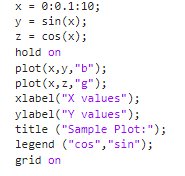
Example:
Subplot
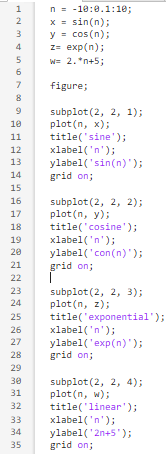
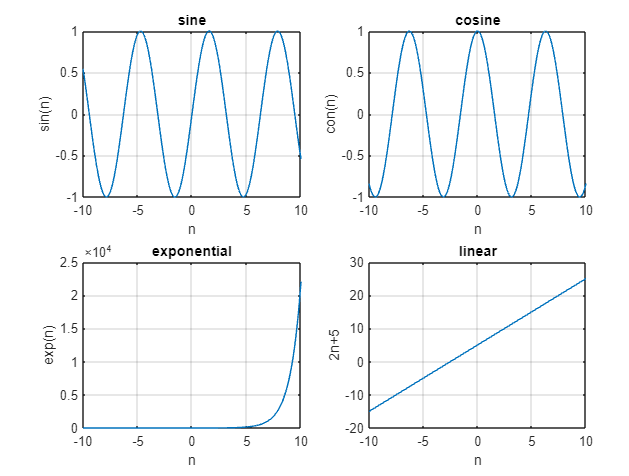
Subplot is used to create multiple plots on same window in a grid format. Subplot is used with the syntax: subplot(R,C,I). Where “R” is the total number of rows of the grid, “C” is the total number of columns of the grid and “I” indicates the index of the plot on the grid.
Syntax: subplot(R,C,I)
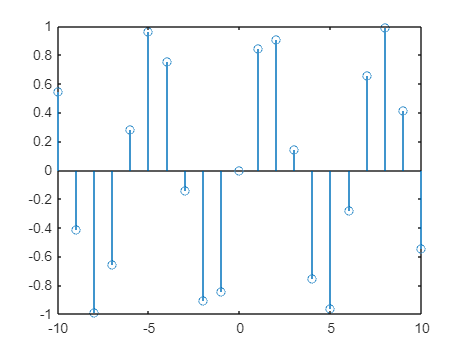
Stem
“stem” is used to plot a signal or a graph where x axis is discretised.

Flow of Control
MATLAB has 5 flow control statements:
if/elsestatementswitchstatementforloopswhileloopsbreakstatement
All these statements form a block that start with the head of the statement and end with end.
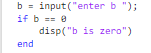
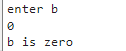
If statement
if condition
   ...
end
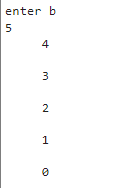
While Loops with break
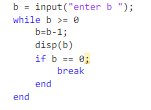
- While loop runs a command repeatedly until the condition becomes false.
- A
breakstatement can be used to break afororwhileloop.
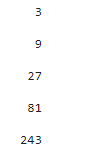
For loops
- For loop repeats a command or a set of commands a specific number of times.
- It assigns and overrides the value of an iterating variable from a specified range.

Simulink
- Simulink is a block diagram environment used to design systems with multidomain models, simulate before moving to hardware, and deploy without writing code.
Starting Simulink
- To start simulink write in command window:
simulink
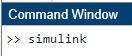
- Alternatively, click on simulink button on the toolbar.

- This is what the simulink start page looks like:

- Click on blank Model to create a workspace.
- Go to library browser to explore toolboxes.
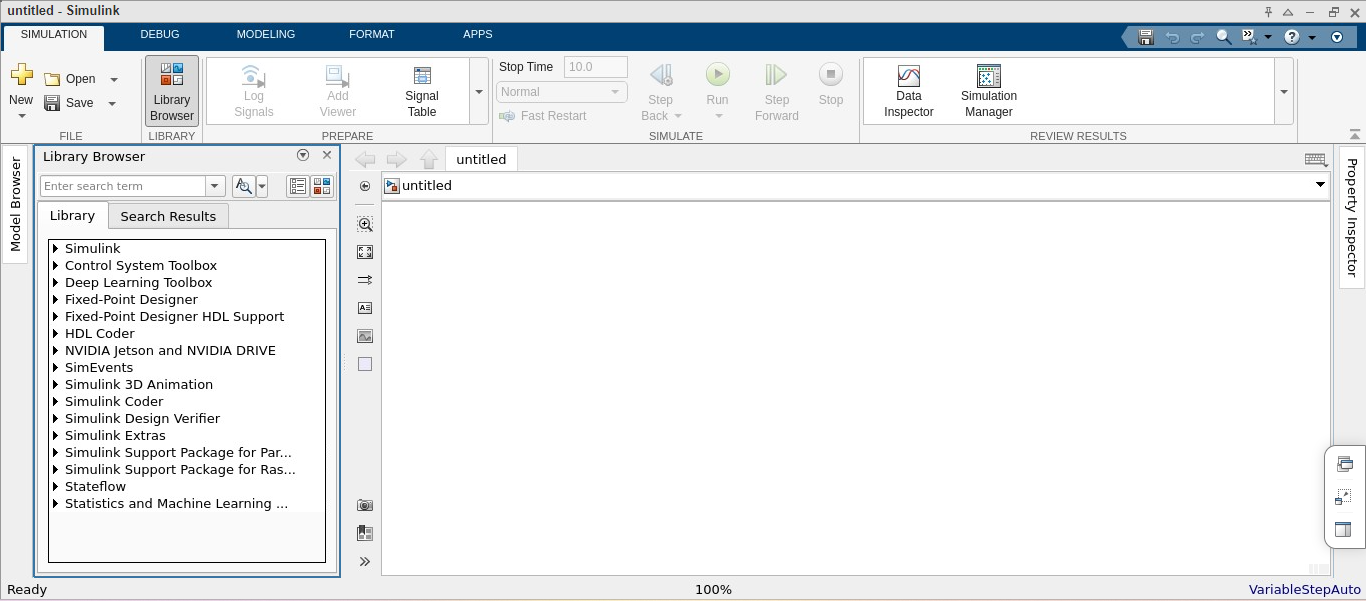
Under simulink you can find multiple classes of blocks:
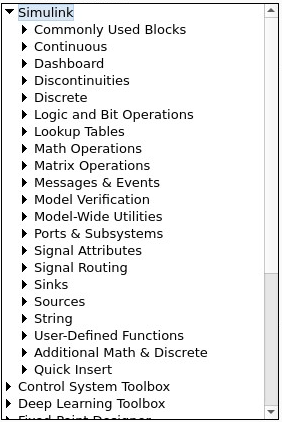
Block Categories in Simulink
- Sources: Used to generate various signals.
- Sinks: Used to output or display signals.
- Discrete: Linear, discrete-time system elements.
- Linear: Continuous-time system elements and connections.
- Nonlinear: Nonlinear operators (functions, saturation, etc.).
- Connections: Multiplex, Demultiplex, System Macros, etc.
Simple Example
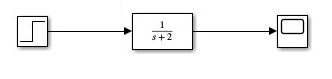
Passing a unit step signal u(t) through a block of transfer function 1/(s+1) and observing its output using scope.
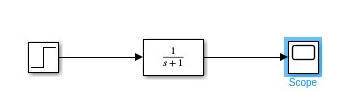
Mathematically:
- Laplace transform of $u(t)$ is $1/s$.
- Transfer function = $1/(s+1)$
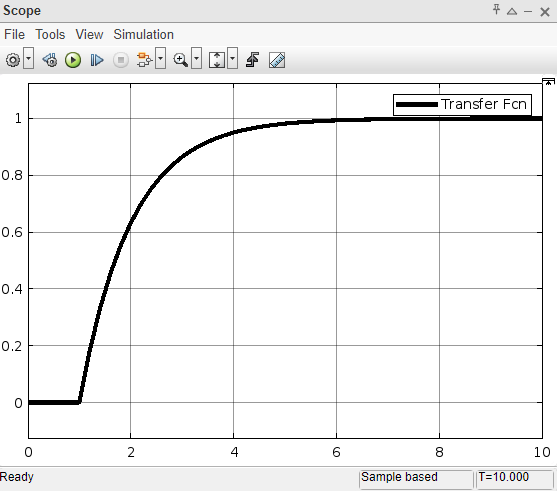
- Output = convolution $u(t)*e^(-t)$ = $1 - e^(-t)$
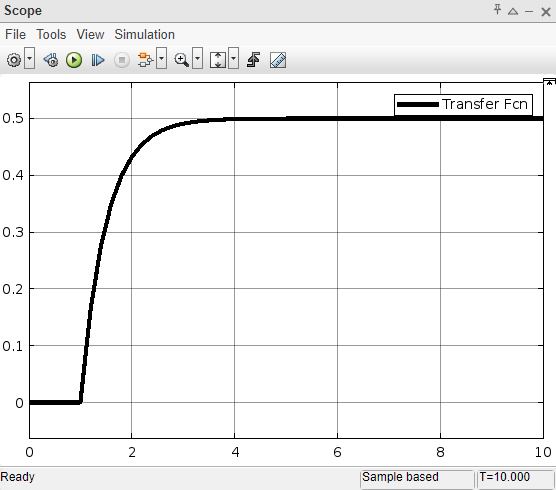
Output plot on Simulink scope:
Modifying Block
- Double-click block (e.g., Transfer Fcn block).
- Change coefficient values in the dialog and click Apply.
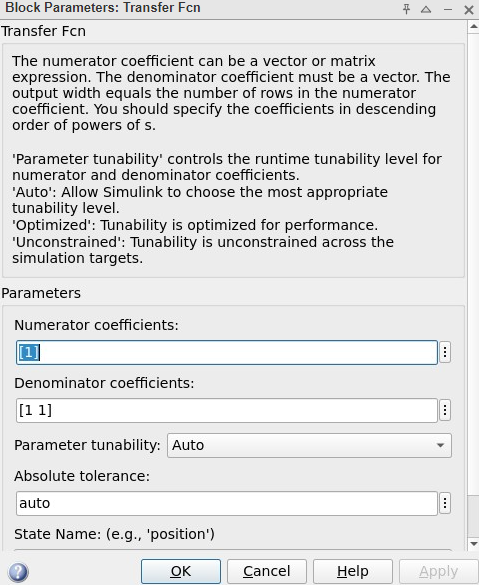
Blocks can be modified by changing the coefficient and then clicking apply: